Add a new flow
You can add a new flow from scratch or by using an existing template:
Add a flow from scratch
|
➢
|
To add a new flow from scratch: |
|
1.
|
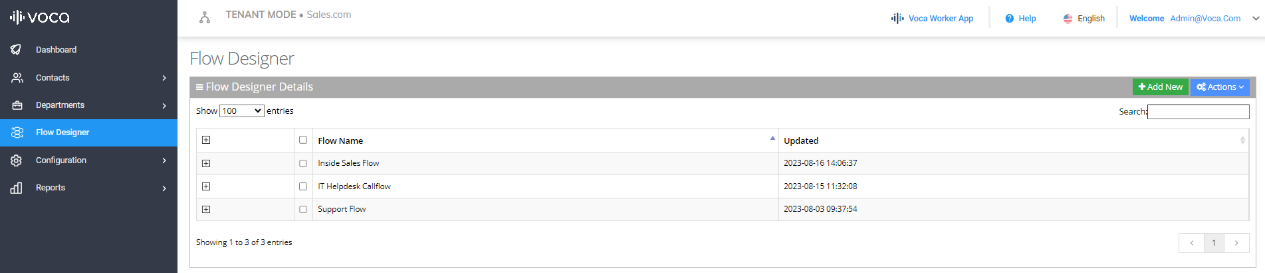
From the Navigation pane, click Flow Designer; the Flow Designer page opens: |
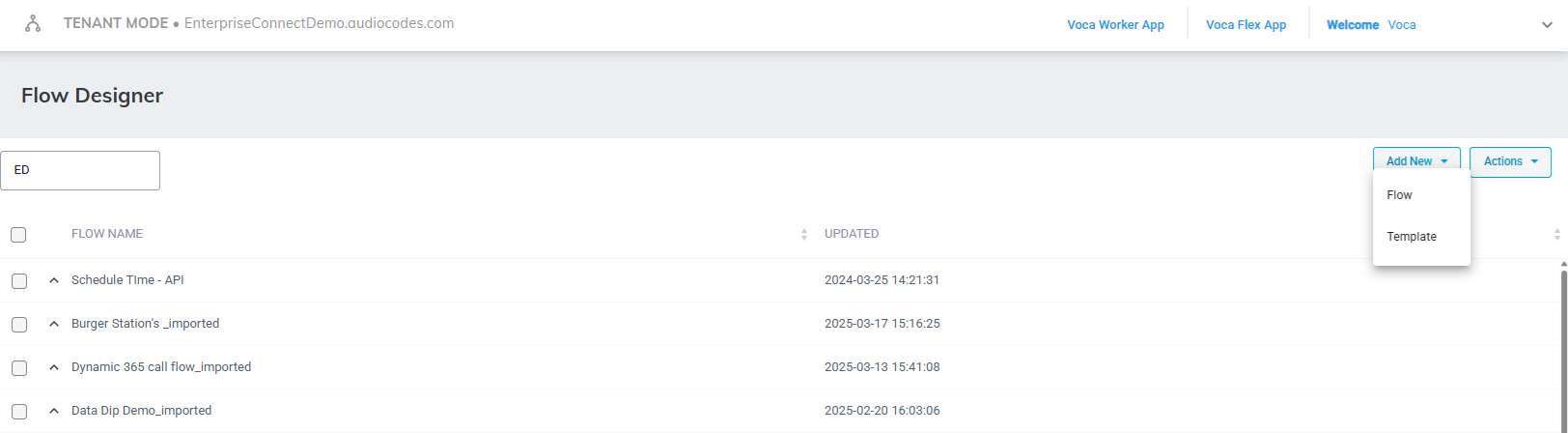
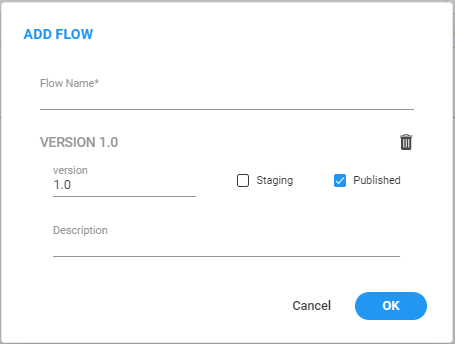
| 4. | In the 'Flow Name' field, enter the name of the flow. |
| 5. | In the 'Version' field, enter the number of the version applicable to the flow. |
| 6. | Select the 'Staging' check box if the flow is still being developed. |
| 7. | Select the 'Published' check box if the flow has been completed and published. |
| 8. | In the 'Description' field, enter a description of the flow. |
Add a new flow from a template
| ➢ | To add a new flow from a template: |
| 1. | From the Navigation pane, click Flow Designer; the Flow Designer page opens: |
| 3. | Select Select Template; the following appears: |
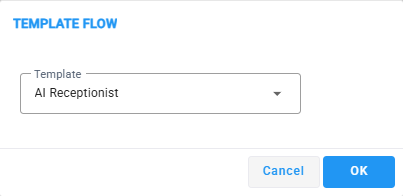
| 4. | Select a template and click OK. |